¶ Gnome Erweiterungen
¶ Derzeit gibt es 3 Wege zum Ziel.
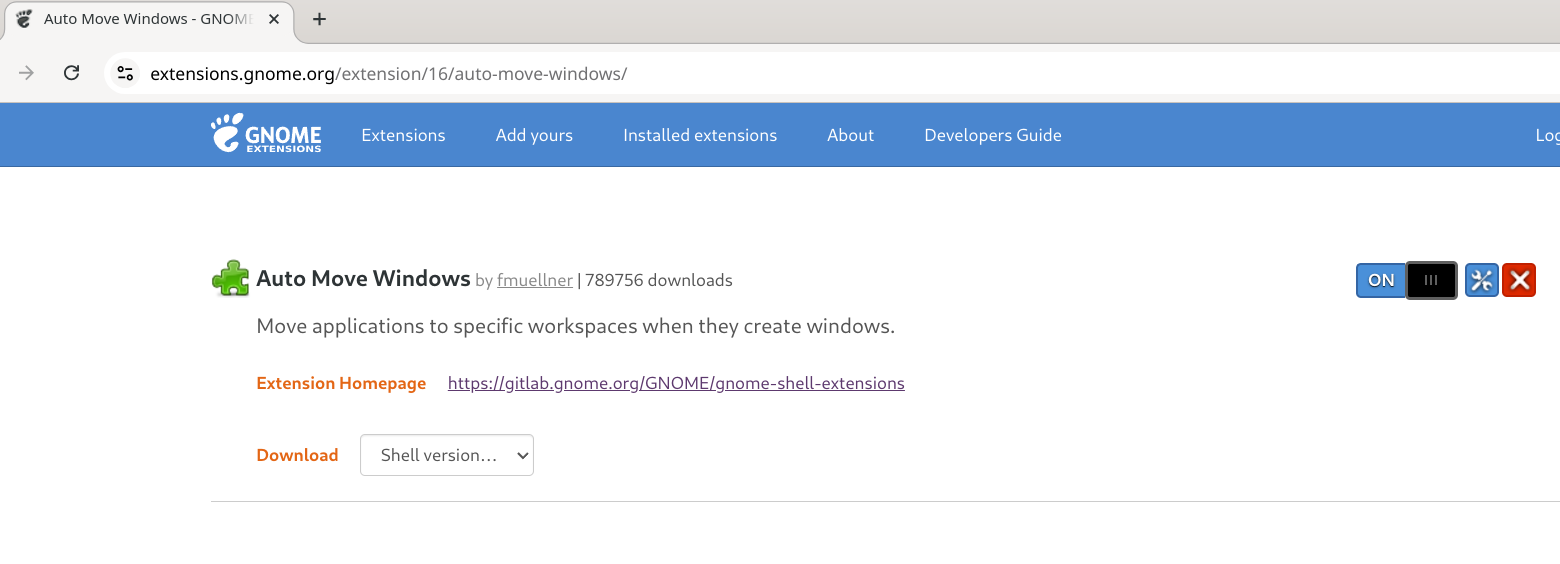
https://extensions.gnome.org/extension/16/auto-move-windows/
¶ 1. https://extensions.gnome.org
¶ via Web
Das funktioniert momentan bei mir nur mit Chrome, nicht mit Firefox
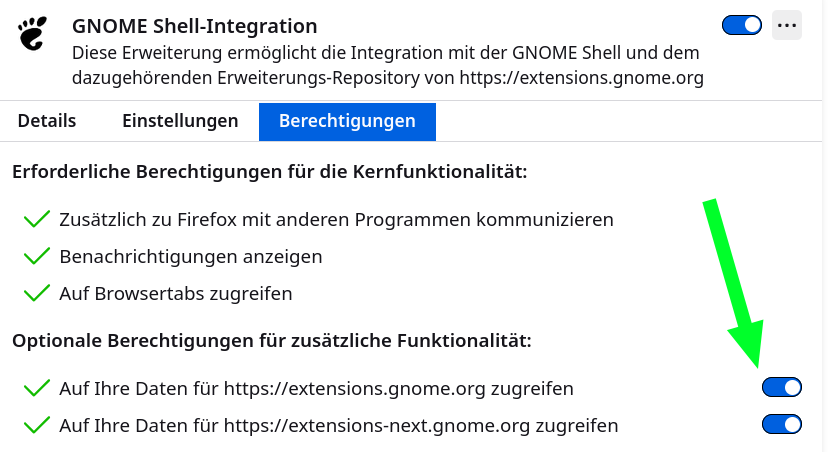
¶ Firefox geht auch:
Der Schlüssel ist hier im Screenshot zu sehen, die Optionen beim Pfeil waren beiden aus.
¶ Lokal am Rechner:
Es gibt sogar 2 Applikationen:
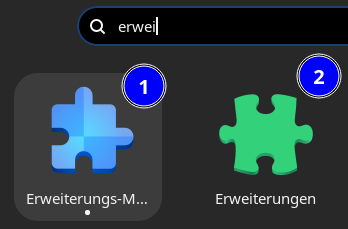
Welches Tool man nutzt, ist Geschmacksache.
¶ 2. gnome-shell-extension-manager (gnome-shell-extension-manager 0.40)
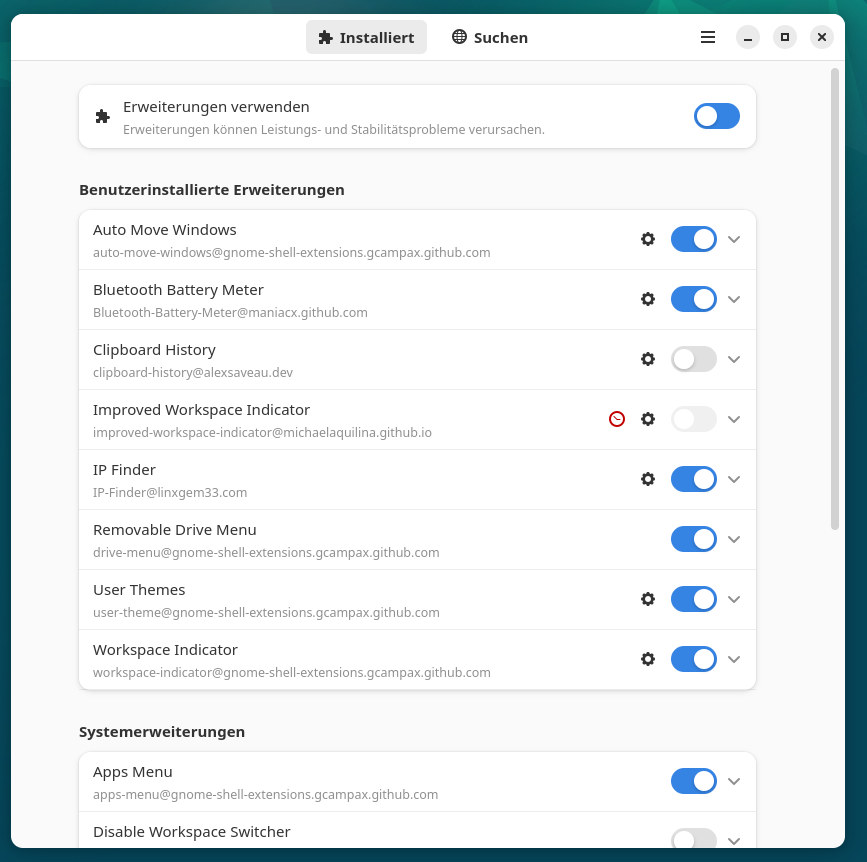
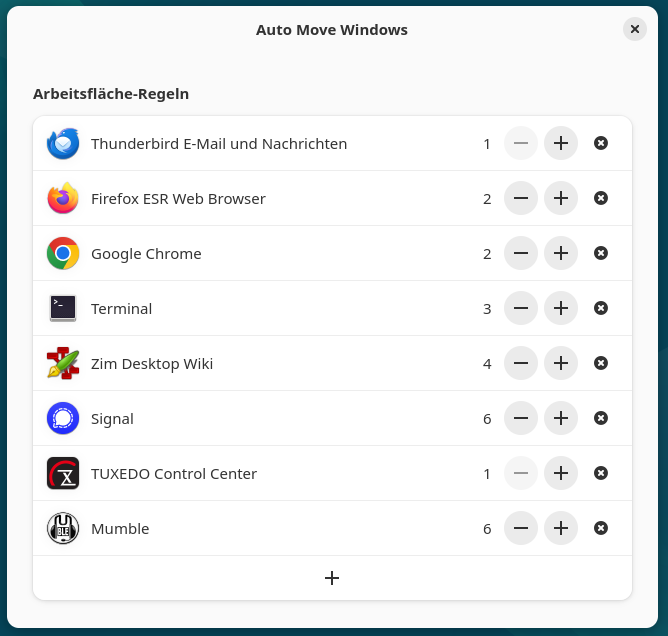
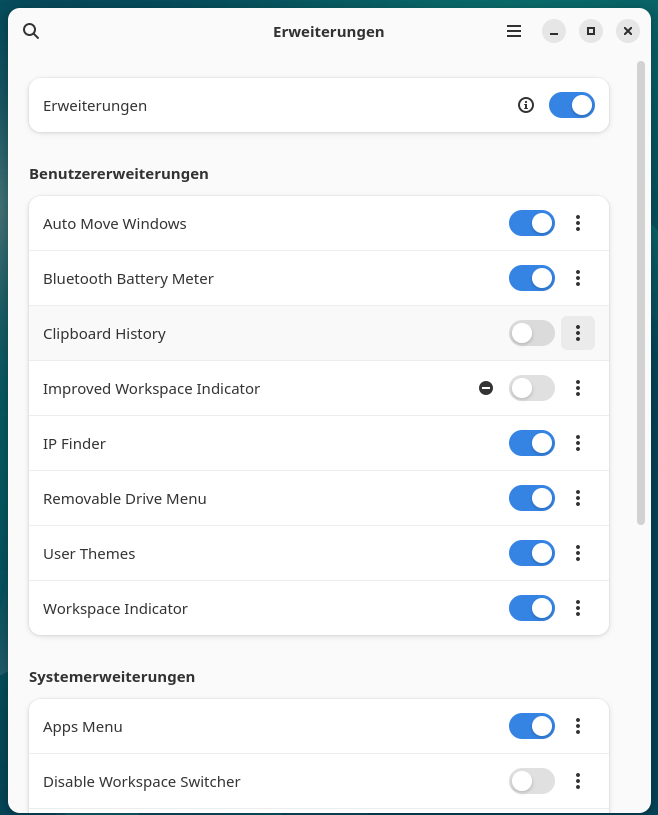
¶ 3. Erweiterungen (gnome-shell-extension-prefs 47.1-2)
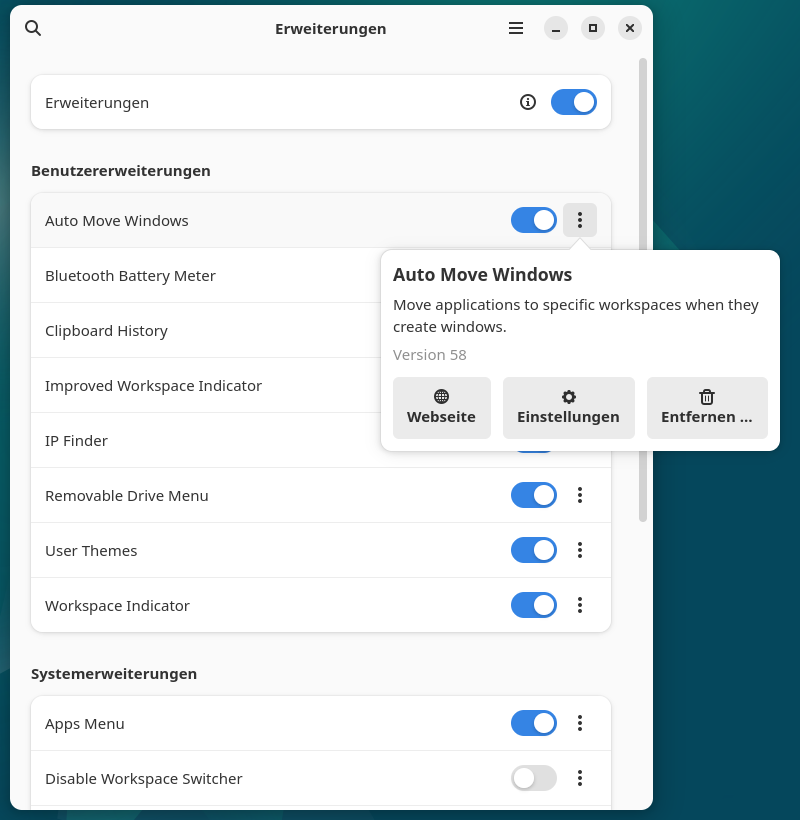
Detail für „Auto Move Windows"
¶ Warum gib es zwei Apps?
gnome-shell-extension-prefs ist die "klassische" Methode vom GNOME-Team und gut integriert. Der gnome-shell-extension-manager scheint jedoch eine modernere, benutzerfreundlichere Alternative zu sein, besonders für neuere GNOME-Versionen.
Der
gnome-shell-extension-manager
ist momentan nicht in trixie in den apt sources.lst enthalten.
entweder, den aus stable installieren,
oder hier https://github.com/mjakeman/extension-manager vorbei schauen.
Es könnte ein Zeichen sein, dass sich das GNOME-Team vielleicht noch nicht entschieden hat, welche App langfristig bleibt. Der Extension Manager ist aber definitiv einfacher für Nutzer, die nicht zwischen Webseite und Einstellungen wechseln möchten. Vielleicht überholt er prefs irgendwann komplett.
¶ Erweiterungen sind nach update „disabled"
Ich nutze Debian Trixie, da gibt es momentan viel updates.
Auch der Gnome Desktop ist davon betroffen.
Ein paar Erweiterungen sind nach dem System full-upgrade nicht mehr eingeschaltet.
Per Webseite https://extensions.gnome.org/local/ Habe ich das gelöst.
Ich musste "Disable version validation" einschalten.
Mit „Erweiterungen" kann ich das nicht lösen, es gibt keine Option dafür.
Aber in der Console geht es auch:
gsettings set org.gnome.shell disable-extension-version-validation true
GNOME Shell neu starten, etwa per Alt+F2, dann r eingeben und Enter drücken – oder ab- und wieder anmelden.
So wird die Versionsprüfung für Erweiterungen deaktiviert, ohne dass man den Browser nutzen muss.
¶ Übersicht über die eingeschalteten extensions:
-
Removable Drive Menu (
drive-menu@gnome-shell-extensions.gcampax.github.com)
A status menu for accessing and unmounting removable devices. -
Workspace D-Bus (
ws-dbus@kemallette)
Control GNOME workspaces and windows from the command line. Move, resize, focus, and tile windows over D-Bus. Works on Wayland where wmctrl and xdotool don't. -
IP Finder (
IP-Finder@linxgem33.com)
Displays useful information about your public IP Address and VPN status. -
Bluetooth battery indicator (
bluetooth-battery@michalw.github.com)
Bluetooth battery indicator -
Apps Menu (
apps-menu@gnome-shell-extensions.gcampax.github.com)
Add a category-based menu for apps. -
Auto Move Windows (
auto-move-windows@gnome-shell-extensions.gcampax.github.com)
Move applications to specific workspaces when they create windows. -
Bluetooth Quick Connect (
bluetooth-quick-connect@bjarosze.gmail.com)
This extension allows paired Bluetooth devices to be connected and disconnected via the GNOME system menu, Shows battery status and more. -
Workspace Indicator (
workspace-indicator@gnome-shell-extensions.gcampax.github.com)
Put an indicator on the panel signaling in which workspace you are, and give you the possibility of switching to another one. -
Dash to Dock (
dash-to-dock@micxgx.gmail.com)
A dock for the Gnome Shell. This extension moves the dash out of the overview transforming it in a dock for an easier launching of applications and a faster switching between windows and desktops. Side and bottom placement options are available. -
Extension List (
extension-list@tu.berry)
Simple GNOME Shell extension manager in the top panel -
LAN IP Address (
lan-ip-address@mrhuber.com)
Show LAN IP address on GNOME panel. Do not show loopback addresses (127.0.0.0/8) or Docker networks. -
Quick Close in Overview (
middleclickclose@paolo.tranquilli.gmail.com)
Close windows with a button click (the middle one by default) when in overview mode -
Clipboard History (
clipboard-history@alexsaveau.dev)
Gnome Clipboard History is a clipboard manager GNOME extension that saves items you've copied into an easily accessible, searchable history panel. -
Named Workspaces (
named-workspaces@a31.at)
Displays the current workspace name in the top panel with inline editing via double-click -
Auto select headset (
autoselectheadset@Anduril97.github.com)
Auto selects headsets when possible instead of showing a dialog -
WiFi Signal Plus (
wifi-signal-plus@jalil.arfaoui.net)
Displays WiFi generation (4/5/6/7) in the top bar with detailed connection info on hover
(erstellt mit:)
gnome-extensions list --enabled -d | awk '
/^[a-zA-Z0-9_.-]+@/ {
  if (ext) print "- **" name "** (`" ext "`)\n  " desc "\n"
  ext=$0; name=""; desc=""
}
/Name:/ { sub(/.*Name: /,""); name=$0 }
/Beschreibung:/ { sub(/.*Beschreibung: /,""); desc=$0 }
END { if (ext) print "- **" name "** (`" ext "`)\n  " desc "\n" }
'
Hier sind weitere Gnome Tricks:
gnome-tricks